Starting from the simple polysynth we ended up with in part 1, in this part we will add some more features that are commonly found on synthesizers such as LFO’s , extra oscillators etc.
Now is a good time to open bidule and load the layout from last time.
Just to my right is a Roland Juno 106 synthesizer and im going to use that as the basis for the construction of the rest of our synth. I’ll follow the control panel of the 106 from left to right and implement each module as we go, although I wont stick to its signal flow exactly it will provide us with some good features (and more options than the 106 has..)
For those that are interested in a bit of history you can read about the 106 over at the Synth Museum here
Building the LFO
First up is the LFO. An LFO or Low Frequency Oscillator is just an oscillator but its set to a low frequency. Im sure you can have a good guess as to what we can use to create it 🙂
On the 106 the LFO is limited to one waveform whereas the advantage of using bidule is that we dont have to get out the soldering iron if we want more features. Before we can start to wire in the LFO we need to get back inside the Basic Synth Voice group, but you might have noticed that if you try to open it for editing you only get the user panel, not inside the group. This is because you cant edit the contents of a group which has been turned into a polysynth using the polyphonic adapter, so while we work with the synth internals we need to unpolyphonize it. To do this just right-click on the module, select Polyphonic Adapter and click the UnPolyphonize button in the dialog. You’ll also notice that the green indicator disappears showing us that we are back to our plain monosynth.
Now, lets go inside the group and start making the LFO. To open the group you can either right click and navigate to Group -> Expand, or you can hold down CTRL and double click the box. (I think you have to use SHIFT instead of CTRL on a Mac)
Once inside, open up the palette. Now you have probably guessed that we will start by using the Basic Oscillator to make our LFO.
Navigate to Building Blocks -> Oscillators and create the new Basic Oscillator. Its always good to name you modules, so rename this new oscillator to LFO. Open the panel for the oscillator and you should see that there is a checkbox labelled ‘Band Limited’. This instructs the oscillator to generate waveforms that dont contain frequencies above whats often referred to as the Nyquist frequency (i.e. half of the sample rate). Band limiting oscillators are too complicated to go into here, if you are interested then you’ll definitely want to find a good audio DSP resource and a lot of spare time. For now, just trust me and select the ‘Triangle’ waveform, and turn the checkbox off. We are only interested in using the oscillator signal for modulation, not for its audio qualities.
Before we start wiring this up its worth checking what we will modulate with the LFO and what control we need for it. On the panel for the 106 there are 2 settings for the LFO itself, frequency and delay.
The frequency is simple, just like the first control we built in the last tutorial we will use a variable (Buiding Blocks -> Math -> Variable) to control its frequency.
The delay works just like the attack section of an envelope, gradually fading in over an amount of time. Using a full ADSR for the LFO isnt needed, instead lets have a look at the other envelope types and see if there is something more simple. The Basic ADSR is just like the ADSR except it has blue inputs for each of the settings rather than using the panel interface, so we wont bother with that. The only other item of interest looks like the Basic Exponential envelope, lets add one of these and investigate what it is.
Ok, it has 2 inputs and 2 outputs (all of the envelops have 2 outputs, the envelope value and the activity gate)
The inputs are
- Trigger
- Decay Time (ms)
This looks promising, all we need to do is turn the decay time into a delay time and changing one letter cant be too hard can it?
The exponential envelope generates a signal starting at 1 and decaying to 0 when it receives a trigger input. What we want is a signal that grows from 0 to 1. Creating this is simple, we just subtract the envelope output from 1.
Lets get wiring. Create a constant (Building Blocks -> Math -> Constant) and set its value to 1, then we need a new Binary Operator to do the subtraction. For this you can copy one of the existing multiplication modules, aka *. Open its panel and change it to subtraction (the ‘-‘ symbol).
Now connect the 1 to the left input of the – and the output of the envelope to the right input. Easy, now we want to make sure the envelope controls the output of the LFO. We do this following the same pattern we used before with envelope modulations, we multiply the envelope with the signal. Copy a * and connect the output of the – to the left input and the output of the LFO module to the right input. The output of this new * will be our LFO signal that we will patch in to modulate parts of the synthesizer.
All that is left is to create the control signals for the envelope and the LFO. Copy the constant labelled ‘1.0’ and connect it to the amplitude of the LFO so we get the maximum signal level (we’ll control the LFO amounts seperately later on).
Now create 2 more variables. The first is for the LFO frequency, connect it up to the first LFO input. The second is for the delay time, wire that to the second input of the exponential envelope. Now we better start naming things before it gets out of hand.
Rename the variable going into the envelope ‘LFO Delay Time’ and rename the other variable ‘LFO Frequency’. Also rename the envelope to ‘LFO Delay’.
Open the panel for LFO Delay Time and set its maximum value to 10000 (10 seconds). Open the panel for LFO Frequency and set the maximum to 20, move the slider up to about 6 and set the minimum to 0.01 (that would give you 1 cycle every 100 seconds, pretty slow..).
You should now have a collection of modules that looks like this :

Now, instead of just wiring this directly to the rest of the modules we’re going to make it into its own reusable group. This way we dont have to keep rebuilding the LFO everytime we need one.
Select all of the modules above, right click and choose Group -> Group Selected Objects. For our group we will use just one input, a trigger that fires the envelope, and one output, the LFO itself. Change the options so there is just 1 sample input and 1 sample output then enter a suitable name. Im going to call mine ‘Basic LFO’. Click OK.
Now we’ll go inside the group to connect the ins and outs. The input goes to the envelope trigger (the first envelope input), then its just a matter of connecting the * to the one output block. Dont forget to rename the actual connectors. Double click the input at the top and label it ‘Trigger’, you can rename the bottom one ‘LFO output’.
Your group will hopefully look like this:
also note that it shows you what you are editing at the bottom of the screen :/ Basic Synth Voice / Basic LFO

Now click the ‘parent’ button in your toolbar to return to the synth voice.
There are just a couple of other things left to do before we start hearing what our LFO is capable of. First we’ll make the user control panel.
Right click your new module and navigate to ‘Group -> Parameters’. Add the LFO : Wave Type, the LFO Delay Time : Value and the LFO Frequency : Value items to the list. Rename them as LFO Wave, LFO Delay and LFO Frequency. Hit ok, then just double click the module to check its panel. It should look like this :

All good, lets save this group on disk so we can reuse it in other projects.
To get our saved group to show up in the palette we need to save it in bidules group directory. Right click on the module and select ‘Group -> Save Selected Group’. Hopefully the save file dialog will already be in bidule’s groups folder, so you can just hit ‘Save’ and its done. (If its not then navigate to where you installed Bidule and open the groups folder)
If you look in the palette under ‘Groups’ you should see ‘Basic LFO’ listed. This is the key to making your work with bidule quicker, quite often you will need the same collection of modules again and again so its always wise to group them and save them (of course dont forget to label things nicely and make a control panel if it needs one).
Now we can finally start to wire the LFO into the synth.
So what are we going to modulate with the LFO?. Looking at the 106 again it has 3 places that mentions the LFO we havent looked at.
- Oscillator Frequency
- PWM (pulse width modulation)
- Filter Frequency
For now we will deal with 1 and 3, we’ll come back to 2 later when we start to look at improving the audio generating oscillator section.
First connect the trigger output of the Note Extractor (thats the last output) to the input of the Basic LFO.
Both 1 and 3 have sliders that control the amount the LFO affects them, in bidule we will simulate these controls by using the trusty Variable module. Open the palette and create 2 new variables. Rename them both, first : ‘Pitch LFO Amount’ and the second : ‘Filter LFO Amount’.
To combine the amount setting with the LFO we will need to multiply them with the output of the LFO. (The output of the LFO varies between -1 and 1). Add 2 multiplication blocks (just copy and paste one of the *’s we already have). Connect the LFO output to the left input of each * and then connect the variable outputs to the right inputs, one for each.
Your synth voice should be looking something like this :

Before we connect the outputs from the *’s lets change the range of the LFO amounts to something useful.
Open the Filter LFO Amount panel and change the upper limit to 1000 and leave the lower setting at 0.
Use the same limits for the Pitch LFO Amount but set the current value to about 200.
Now connect the output of the pitch LFO * (the right one in the picture above) to the frequency input of the Oscillator.
Try playing your MIDI keyboard, you should hopefully hear a sound reminiscent of a siren, or something from an old space movie. Play around with the settings of the Basic LFO and the Pitch LFO Amount to get a feel for the range of control we have from the LFO
Of course, feel free to experiment and increase or decrease the ranges of the controls, you can get some pretty interesting effects if you start modulating the pitch at audible frequency rates…( > 20 Hz)
If you are wondering why we havent just taken the seemingly obvious step of connecting the filter lfo to the cutoff frequency, its because when using bidule there are certain things you have to be careful of. The developers of bidule have placed a lot of power in your hands, and with great power comes great responsibility. If we just wire the LFO into the filter you will hear either a click and cant play a sound, or you will play a sound for a short while before you hear a click and then nothing. This is because the filter doesnt like a cutoff value below zero, and our LFO is oscillating between a negative and positive number which is just being added to the envelope setting. What we need to do is add some protection to the filter so that the cutoff doesnt go below a certain level.
For this synth we’ll set the minimum cutoff to be at 30Hz, thats low enough for most purposes, so how do we enforce this limit?
Time for a bit of logic. When adding the math modules earlier you may have notice that next to the Binary Operator is a module called ‘Binary Logic Operator’. This handy little box allows us to perform logic operations on 2 signals. What logic operations I hear you ask…and what does it output for an operation?
Lets take a look, add a Binary Logic Operator to the layout and open the panel, you’ll see a drop down list containing these items :
- Less Than
- Less Than Or Equal
- Greater Than
- Greater Than Or Equal
- Equal
- Different
- And
- Or
- XOR
- NAND
- NOR
- XNOR
The output of this module will be 1 whenever the two inputs pass the operation selected. e.g. Say we choose ‘Less Than’. If the second input is Less Than the first input then we get a 1, otherwise its a zero output.
All of the operations up until And should be self explanatory, the rest of the operations are the classic logical operators that you may remember (or you may not). We will cover those when we need them.
Lets stop and think for a second..we want to control the cutoff frequency of the filter, making sure that it is never less than our set amount (30).
Sounds like we want to do something with the ‘Less Than’ operator. Select ‘Less Than ‘ from the list and close the panel. Next create a constant and wire it to the first input. Open the constant panel and set it to 30.
This will mean that our output is 1 if 30 is less than our signal on the right and zero otherwise. Now we need something that will switch between the cutoff input or 30 that uses the output of this operator.
Lets work on the first part of the signal path for when the input is above 30.
Connect both the output of the Filter LFO * and the Filter Env * to the input of the Binary Logic Operator, as you can see here :

Now we will use another * module (just copy one already in the layout). Connect the same two inputs that go to the right of the logic operator to the right input of the * and connect the output of the logic operator to the left input of the *. This * will give us the cutoff value if the operator output is 1, otherwise it will give us just 0.
All we have to do now is to make another signal that is 30, only when the logic operator is at 0, we could use another logic operator that is set to greater than and multiply its output with the constant 30, but theres a slightly easier way.
Open the palette and navigate to Building Blocks -> Math. This time we are going to use a ‘Unary Operator’. This is a module that has just one input (hence unary) and one output. Add it to the layout and open its panel, for now we wont discuss the huge range of operations here, just look near the end and choose ‘LOGICAL NOT’. This operator will turn 1’s into 0’s and vice versa. So connect the output of the binary logic operator to the input of the Logical Not, create a new * module and connect the constant 30 to the left of the * and the Logical Not output to the right of the *.Great, almost done 🙂
Finally we can try out the filter LFO, disconnect the existing filter cutoff input (from the filter env *), you can click on the cable to select it and hit the delete key. Then connect both unconnected * outputs to the cutoff input so they will be added together. This is fine because they will always toggle between one or the other, either 30, or the input thats above 30, they wont ever appear at the same time.
Ok, things are starting to look a little messy, but hopefully the sound should work and you have something that looks like this :

Try changing the settings for Pitch LFO amount so you can hear just the filter LFO…also just try different lfo settings, different envelopes, different oscillator types and filter types to get a feel for the range of sounds you can now make using just this basic setup. Once you are done leave the filter set to the One Pole / One Zero Low Pass.
Right, time for a tidy up. The collection of modules we just built to keep the filter above a certain level is quite handy, so i think we should make a group to contain this logic, im sure this will come in useful again. 🙂
Select all the modules in the lower right corner as you see them above, the 30, the binary logic operator, logical not and the two *’s. Right click on one of the selected items and choose Group -> Group Selected Objects. We’ll use 1 sample input and 1 sample out and I’m naming mine ‘Boundary’.
Before we go inside the group we can wire it up here. Reconnect the two inputs, one from the Filter LFO * and the other from the Filter Env *, then reconnect the output of the Boundary to the second input of the filter. Ok, thats a lot neater.
Now go inside the group and connect the top input to the right of the logic operator and both *’s to the bottom output. I wont bother naming the inputs as they are fine as they are.
Your group should look something like this :

Now we can configure the control panel. Right click on the canvas and choose Group -> Parameters. Add 30 : Value and Binary Logic Operator : Operator to the list. No need to rename them as they say what they are, unless you can think of names you would rather have. Click OK, then select ‘Parent’ from the toolbar to go back up.
If you open up the control panel it should look just like this :

Now close the panel and lets save this group so we can use it again whenever we need it. Just right-click, and select Group -> Save Selected Group and save it in bidule’s groups folder.
The last thing to do is to add our LFO controls to the control panel for the synth voice. Right click on the canvas and select Group -> Parameters. Scroll down the list on the left until you get to Basic LFO, then add these parameters :
Basic LFO
LFO Wave
LFO Delay
LFO Frequency
Filter LFO Amount : Value
Pitch LFO Amount : Value
Rename the Filter LFO Amount value to ‘Filter LFO Amount’ and the pitch parameter to ‘Pitch LFO Amount’
Thats our LFO section complete.
You can download the layout so far from here :
Now before carrying on you can always go to the top level (click parent on the toolbar) and re-polyphonize the synth and have a play around, just remember to unpolyphonize it before you come back inside the group.
Improving the Oscillator section
For the next part we are going to look at the oscillator section. If you open the current oscillator you’ll see it has 6 different waveforms :
- Sine
- Triangular
- Saw
- Square
- Noise
- Ramp
We are going to change the oscillator for a new one to match the 106 a bit more closely.
On the Juno 106 the main oscillator (labelled DCO for Digitally Controlled Oscillator) has 2 types. A pulse wave (i.e. a square wave with width control) and a sawtooth. We’ll just build a version of the pulse wave oscillator for now.
On the 106 panel the pulse oscillator also has a slider next to it labelled ‘PWM’, this stands for Pulse Width Modulation. This setting controls how long the square wave stays at the top of its cycle, or you can look at it as adjusting the symmetry of the wave. At one end of the range, the signal stays at 1 for a very brief period, maybe just 2-3% of the whole oscillation, at the other end the wave is symmetrical, a.k.a the square wave.
So what can we use in bidule to get a similar effect?
If you open the palette and have a look in Building Blocks -> Oscillators you will see a couple of likely candidates : Pulse and PWM Osc.
The PWM Osc sounds like a perfect fit, so lets try it out and then investigate what it does.
Instead of just adding it to the canvas and rewiring everything, right click on the current oscillator and choose Replace -> Building Blocks -> Oscillators -> PWM Osc. Now try playing your keyboard. You should hear a sound that has more motion in than the previous oscillator, but you might also notice that it clicks.
This PWM Osc is a group thats been built for us by the nice people from Plogue. Let’s have a look inside and see how they put it together.

You can see that there are two sawtooth oscillators which are combined, but one of them has an LFO Controlling the phase offset. The output of the second one is also inverted before it is combined with the first. The result of this creates a pulse wave, and the phase offset of the second oscillator controls how wide the pulse is. (I wont go into the maths here, but adding these two sawtooth waves does give the result we need.)
Also notice that the output of the LFO goes through a module called ‘Abs’, all this does is to take whats called the absolute value of its input. An absolute value just means that it is always positive, so if the LFO goes below zero, the output is the same number, just positive.
We dont want the pulse width automatically controlled by and LFO, we want to control it ourselves, so for now delete the LFO and the abs module. To give us the control we want we will add a new input to the oscillator. Right click on the canvas and select ‘Group -> Properties’ and in the panel increase the number of sample inputs to 5. Label this new input ‘PWM’.
Go back to the parent (Basic Synth Voice) and add a ‘Variable’ module (from Building Blocks -> Math). Connect this to the new PWM input and open the panel. Play a few notes while moving the slider. If you set the slider to 0.5 and you’ll notice that it sounds like a square wave, but at either end (0 and 1) the sound disappears, which we definitely dont want to happen. Also the sound is the same either side of 0.5 (0.4 sounds like 0.6 etc..), this means we can set the range of this slider to something more useful.
For the upper limit enter 0.5 and for the lower limit enter 0.02. Now move the slider whilst playing to listen to the range of sounds we have from the oscillator. Before we move on, label the variable ‘PWM’.
Next along the panel on the 106 there is a switch which says LFO and MAN. This chooses between LFO control of the pulse width and manual control. We already have our manual control, but we deleted the LFO control that was built into the oscillator so we will need to rebuild it.
Like the 106 we will use the same LFO to control the pulse width as we use to control everything else (you can improve on this later by creating a seperate LFO, this is the beauty of a modular software system, its easy to expand your instruments without paying more money or becoming an electrical engineer).
One thing we need to remember is that like the original LFO in the oscillator we want to control the values going into the PWM setting. Starting with the same technique, add the Abs module to the layout (the abs operation is another unary operator).
From the palette choose Building Blocks -> Math -> Unary Operator, open the panel and select ‘ABS’. The nice thing about this is the name will change as well. Connect the output of our Basic LFO to the Abs input. Now we have a signal that just varies between 0 and 1, but our PWM slider control uses 0.02 and 0.5. To ensure we get the input we want we will do two things. First we will use another boundary module in front of the PWM input to prevent it going lower than 0.02, just like we did with the cutoff frequency for the filter.
Copy and paste the existing boundary module, open its panel and set the value to 0.02. Now disconnect the PWM variable from the oscillator, we’re going to make sure everything runs through this boundary before hitting the oscillator. Connect the boundary output to the oscillators 5th input.
The last piece we need to build is the switch that chooses between the manual input and LFO. To create this we will use some simple logic modules.
The first is the switch itself, bidule provides a module called ‘Gate’ which has one output and one checkbox on its control panel. When the box is unchecked it outputs 0, when checked it outputs 1.
From the palette add Building Blocks -> Gate. In our implementation we will use the 1 value to mean ‘use the LFO’ and 0 for manual control. To make the gate control the LFO we will just multiply the gate signal with the output of our abs module. Copy and paste one of the existing * modules, then connect the gate to the left input and the abs to the right. Then connect the * to the boundary. Now open the gate control panel, tick the box, then play some notes and try different LFO settings.
You’ll hear a similar sound as we had when we first connected the new oscillator, but hopefully without the clicking.
Now to wire in the manual control we want to make sure its value is used when the gate is at 0, but if we multiply it with the gate signal it will work at the same time as the LFO, what we need to do is swap the gate signal around. To do this we’ll use the logical NOT operator again (remember it just changes 0’s to 1’s and vice versa).
Copy the Abs module and in the new one change the operation to Logical NOT. Connect the output of the gate to its input and following the usual method, copy and paste a * module and connect the PWM variable to the left and the Logical NOT to the right, then connect the * output to the boundary input (where the other * is already connected).
This part of the layout should look something like this :

Try playing some notes again and switch the gate between the LFO and the variable. Also change the PWM variable setting to make sure its working.
All we need to do now to complete the PWM part is control the LFO amount using the PWM variable. As you’ll probably guess its just another multiplication. Copy and paste a *, then connect the PWM variable output to the left input and rewire the ouput from the * after the abs (the one on the right above) to go into the right input of the new * module. Then connect the output of this new * into the boundary. Make sure the gate is on and play some notes while adjusting the PWM slider.
You can now control the amount of LFO that affects the PWM (although it will sound slightly different than before because we are effectively cutting the LFO range in half, but we’ll leave it for now).
The layout should look like this :

You can download the layout so far from here
Its time to tidy up again, so we’ll make this little section into its own group.
Select all the modules you see above and create a group from the selection. It needs one sample input (for the LFO) and one sample output. I’ll name mine PWM Control.
Before wiring up the internals, reconnect the Basic LFO to the input and the output to the last input of the oscillator.
Now go inside the group and connect the top input to the Abs module and the Boundary output the the bottom output. Rename the top input to ‘Modulator’ and the bottom to Pulse Width. To make the control panel, right click on the canvas and select Group -> Parameters. Add PWM : Value and Gate : Gate to the list. Rename Value to Amount and Gate to MOD / MAN (for modulator / manual).
Step back up to the parent and enjoy the latest incarnation of our synthesizer.
As you play around you might notice that the LFO affects the pulse width at twice the speed of the filter and pitch. This is because we used the Abs module in the PWM control which is effectively doubling the rate.To fix this we will take advantage of the fact that our PWM variable only goes up to 0.5, this cuts the range of the LFO in half, so we can shift the LFO input signal up by 1 (so it ranges from 0 -> 2) and the multiplication will bring it back into the range 0 -> 1 and we dont need the abs because it wont go below zero.
Open up the PWM control again. Delete the Abs module and connect the top input to the now empty * input. Create a Math -> Constant, open its panel and set it to 1.0. Now wire the output of this to the same right hand input of the * we just connected.
Thats it done. Now play it again and it should sound nicer when you change the LFO speed and waveform.
Before we go on and add the rest of the oscillator section we’ll update the control panel for the synth voice to include our new PWM controls.
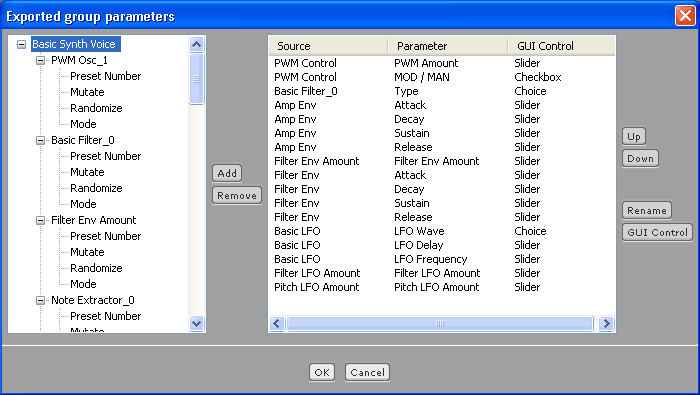
Right click on the canvas and select Group -> Parameters. Scroll to the bottom of the list on the left and add PWM Control : Amount and MOD / MAN to the list. Rename the Amount control to PWM Amount so you will know what its for, then using the ‘Up’ button move the controls up to the top of the list. Your settings should now look like this :
The next part of the 106 we will copy are the two extra oscillators.
One called ‘Sub’ which is a square wave played one octave down from the main oscillator (one octave below is half the frequency) and a Noise oscillator. We will also need something to control the levels of these oscillators. Rather than using variables and multiplication to set the levels of the oscillators we will make use of one of bidules many mixer modules. The advantage we get is that we can also use it to mix the main oscillator.
If you open the palette and look in the ‘Mixing’ section you will see a lot of different mixers. We have 3 mono signals that we want to mix, so we’ll use the Mono Mixer 04, a mixer for 4 mono channels. Add one of these to your layout.
We are going to mix the oscillators before they go into the filter section, so start by rewiring the output of the PWM Osc to the first input of the mixer and connect the first mixer output to the filter input. The mixer outputs a stereo signal, but we only want a mono signal.
Next up is the Sub oscillator, this is just a Basic oscillator with its wave type set to square, so add one to your layout (Builind Blocks -> Oscillators -> Basic Oscillator). Open its panel and set the wave type to square.
As i mentioned the frequency for this oscillator will be half that of the main oscillator, so we just divide the frequency from the note extractor by two. The divide operation is available from the same module as multiplication. Copy and paste one of the *’s and via the panel change the operation to ‘/’. Connect the frequency output of the note extractor to the left input.
All we need now is a constant with its value set to 2. Create one and connect it to the right input of the divider. Connect the output of the divider to the input of the new basic oscillator. Connect the amplitude output of the extractor to the second input of the sub oscillator and rename the oscillator to ‘Sub’.
Connect the output of the Sub to the second mixer input and try playing a few notes,the sound should have a bit more body to it.
You can open the mixer panel and try adjusting the levels of the first two channels to hear what each oscillator sounds like.
To finish off, we’ll create the noise oscillator. Theres a specific oscillator available called Noise from the oscillator section, so create one of those. It has no inputs, it just generates a constant noise, but it will shaped by the filter and the amp section so we will only hear it when the note is being played.
Connect its output to the 3rd channel of the mixer and again play some notes and try different levels from the keyboard. You can get quite a wide range of sounds just from this simple setup.
After a bit of re-arranging the complete layout looks like this :

The last piece of the wiring is add the pitch LFO to the Sub oscillator, just connect the output of the * after the Pitch LFO amount to the left input of the ‘/’ block.
All thats left for this part is to add the mixer level settings to the control panel.
Open the control panel dialog (Group -> Parameters) and from the Mixer settings add the volumes for channels 1, 2 and 3. Rename them ‘Main Osc Level’, ‘Sub Level’ and ‘Noise Level’. You can move them to the top just under the PWM controls if you like.
Now go to the parent layout (the main layout), right click the module and select Group -> Properties. Im going to rename this group to ‘3 Osc Synth Voice’. Close the panel, re-polyphonize the module and create some new sounds. Dont forget to create presets if you find a sound you like (Remembering to use add copy).
You can download this layout from here
Fixing the LFO
One thing you might notice is that the LFO range isnt musical, i.e. you play a note at different octaves and you get a different musical range. This is because we are modulating the frequency directly and not taking into account the frequency of the note that is playing.
To get the correct tracking of the LFO amount for all the notes up and down the keyboard we will convert the LFO value into a frequency multiplier. For this we need a new module from the Math section. This time its the ‘Unit Converter’. This module has a selection of useful conversion functions built in to save you from mathematical headaches.
Open the palette and add a Unit Converter, then open its panel and choose ‘cent to freq ratio’. This converts cents (100ths of a note) into frequency ratios. This means we must multiply the frequency of the note that is playing by the output of this module to get the right scaling.
Disconnect the output of the * that links the Basic LFO and Pitch LFO Amount controls (its going to the 2 frequency inputs of the oscillators). Make a new connection from the * to the input of the new converter. Next copy a paste a * then connect the converter to its right input and the frequency output of the note extractor to its left. This * will output the correctly scaled frequencies. Finally rewire the two cables which connect the frequency of the note extractor to the oscillators by moving the top connection to the output of this new *.
Open the panel for the Pitch LFO Amount. Now the pitch LFO will be working in cents, or 100ths of a note, so to be able to sweep a full octave up and down we need to set the top level to 1200.
One last modification you might like to make is to ensure that if 2 notes are played at the same time their LFO’s are synchronised. To do this we can modify the Basic LFO module. Right click on it and select Group -> Properties. Increase the sample inputs to 2. Connect the trigger output of the note extractor to this new input. Now go inside the module and connect the second input to the phase reset of the oscillator. Rename the input to ‘phase reset’. Go back to the parent layout and save the modified Basic LFO group.
The complete layout now looks something like this (after a bit of tidying up..)

You can download this layout here :
More Tidying Up
The layout is starting to get quite cluttered and can be a bit confusing to follow what goes where. Now is a good time for us to group some of these pieces together to give us a higher level overview of how the synth is constructed.
First lets look at the oscillator section. There are basically 3 inputs that the oscillators need :
- Frequency
- Amplitude
- PWM
And just one output for the audio (coming from the mixer).
Lets put all of this into one group. When grouping a selection of modules, you need to make sure that the interconnecting cables are selected as well, otherwise they wont be included. Make a selection that includes these modules and cables shown below :

Right click on one of the modules and select Group -> Group Selected Objects. Set 3 sample inputs and 1 sample output then (the hardest part) choose a suitable name. I’ll call mine ‘106 Style Osc’.
Before going inside re-connect the wires. First is the frequency input, that comes from the * that now has no output cable. The amplitude input (second along) comes straight from the note extractor and the 3rd input (PWM) comes direct from the Basic LFO. Connect the output to the basic filter and go inside the group.
Connect the first input at the top to both the left of the divider : ‘/’ and the first input of the PWM Osc. Connect the second to both amplitude inputs on the oscillators and the third into the PWM Control. Finally connect the left output of the mixer to the bottom output.
You should be getting used to the general procedure for creating groups by now, so remember before you leave the group
1: Name the top and bottom connectors.
Top : Frequency, Amplitude, PWM
Bottom : Audio
2: Add the controls to the user panel. (right click and select group -> parameters)
Source New Name
PWM Control : Amount PWM Amount
PWM Control : MOD / MAN MOD / MAN
Mono Mixer : Volume Channel 1 Main Osc Level
Mono Mixer : Volume Channel 2 Sub Osc Level
Mono Mixer : Volume Channel 3 Noise Level
Then go back to the parent layout and save this new group into your bidule group directory.
If you open the palette and look in ‘Groups’ you should see that we’re starting to build a nice little collection of groups for use in other projects. Also our layout is already significantly easier to decipher.
The next section we can tidy up is the filter section. For now we will just group the modules concerned with filter modulation, not the actual filter itself. That way we can replace the filter with different ones without going inside another group and we can re-use the modulation control section for all kinds of modulation tasks.
Our filter modulation group will take 3 inputs : Trigger, Gate, Modulator and provide one output, the combined modulation.
Make a selection as show below :

And create a group from the selection. Set the correct number of inputs and outputs and give it a name (Filter Mod Control). Reconnect the wires as follows. Gate and trigger from the note extractor to the first two inputs, Basic LFO to the third. Connect the output to the cutoff control of the Basic Filter.
Go inside the group and connect the first two inputs to the Filter Env and the third input to the empty connection on the *. Connect the boundary to the output.
Rename the inputs to Gate, Trigger, Modulation and the output to Modulation.
Create the control panel :

Now back to the parent and save the group.
I’ll leave the pitch modulation section as it is for now.
To finish up we need to re-configure the control panel for the synth voice because when we grouped the various bits and pieces some of the settings were removed.
Set the list up like this :

Now go to the main layout and rename this synth voice to something useful, im going to call it ‘106 Style Synth Voice’ and save the group.
Right-click and setup the polyphonic adapter..now you have a reasonably capable polysynth.
You can download the complete layout from here :
Thats all for this tutorial. Next we will look at improving the filter section to get even more controllable sound.
Feel free to leave comments or contact me with ideas and suggestions.
Martin.
Your tutorials are exceptionally clear. Many thanks for taking the time!
V.
Thanks very much for doing these great tutorials. I’ve had Plogue for a couple of years but haven’t far on my own; these are a huge help.
thank you so much for all of these tutorials. I’m making my way through them bit by bit, and they are really helping me to understand the basics.
I’ve just purchased PB and I’m working through your tutes as an orientation exercise. They’re working really well. Thanks.
Regarding expanding a group on the Mac: I find that either shift- or command-double-clicking works (but, as you stated, control-double-clicking doesn’t).
… and after happily working through some more …
I think that maybe your “boundary” group can be built more simply using the ‘MAX’ binary operator.
Wow, I love you. These tutorials are not just teaching me Bidule, they are also helping me understand synthesis in general. Thanks so much for the help.